Header

How Can I Connect My Twitter Account?

March 19, 2021
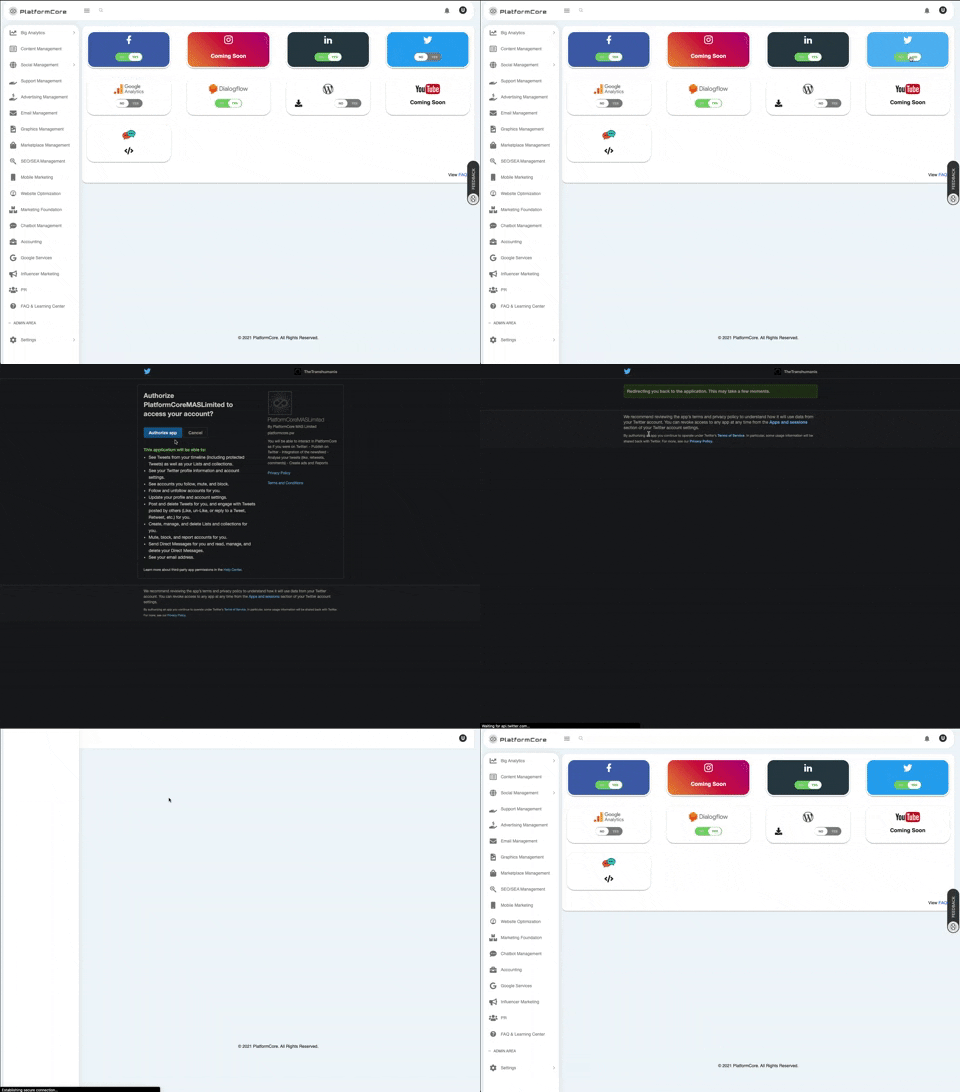
  1. Login to your Twitter.com account.
  2. Open another tab and login to platformcore.pw
  3. Go to "Settings" and "Link Accounts" section
  4. Click on "NO/YES" button below the Twitter logo
  5. Give twitter's permissions to PlatformCore App by clicking "Authorize app" 
You can also remove our app here: https://twitter.com/settings/connected_apps 

Full Process:
Twitter Integration Full Process

How Can I Connect My LinkedIn Page?

March 19, 2021
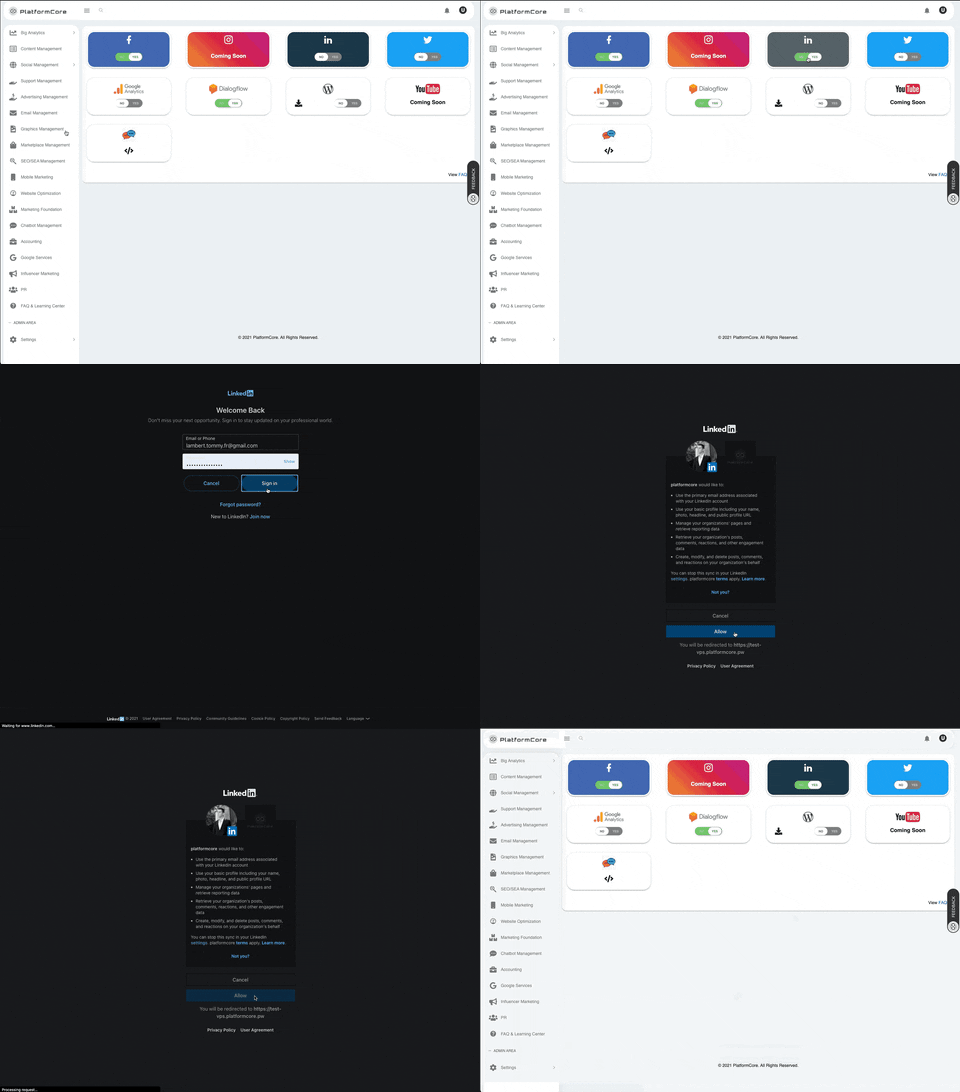
  1. login to platformcore.pw
  2. Go to "Settings" and "Link Accounts" section
  3. Click on "NO/YES" button below the LinkedIn logo
  4. Sign in to your LinkedIn account 
  5. Grant permissions to PlatformCore app by clicking "Allow"
  6. You've linked your LinkedIn account with PlatformCore! Congrats!
  You can remove our app access here too: https://www.linkedin.com/psettings/permitted-services (Other applications section) 

Full LinkedIn integration:
Full LinkedIn Process

How Can I Connect My Facebook Page?

March 19, 2021
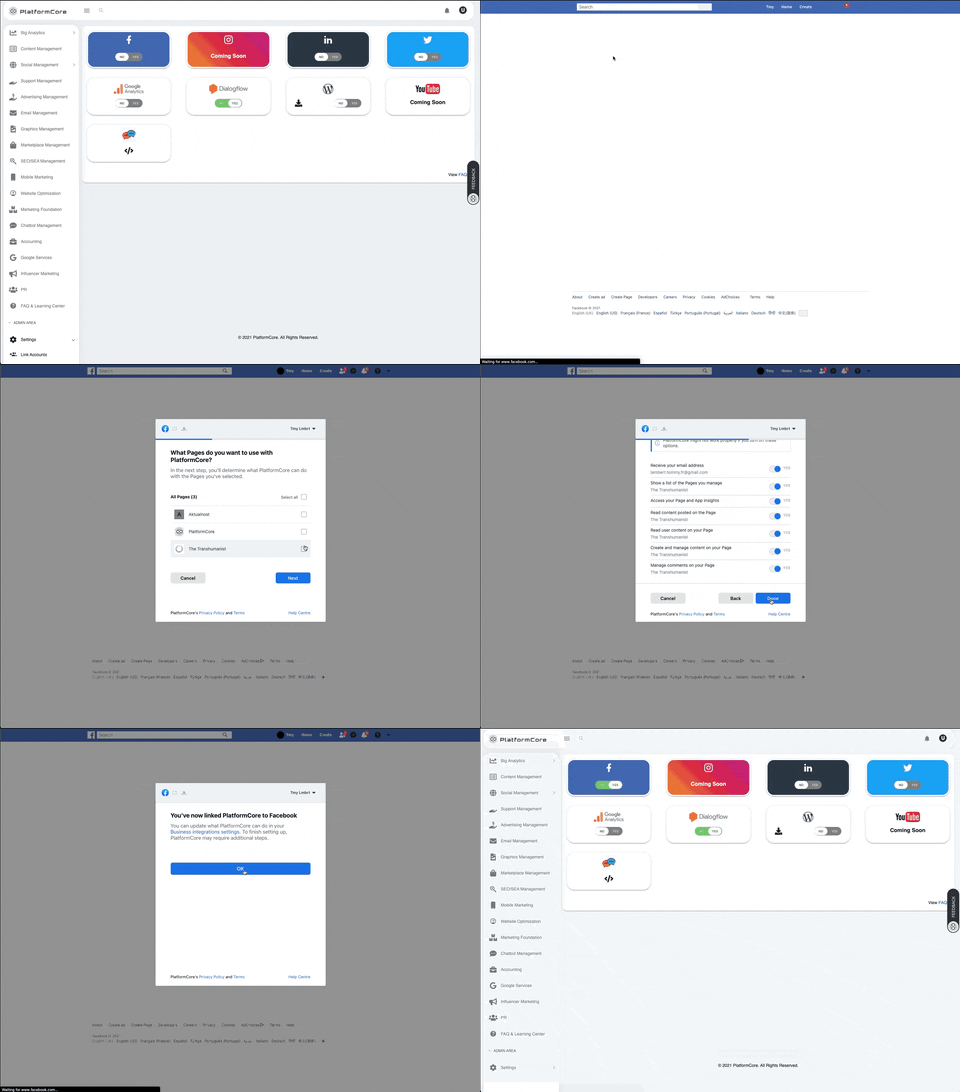
  1. Login to your Facebook.com account.
  2. Open another tab and login to platformcore.pw
  3. Go to "Settings" and "Link Accounts" section
  4. Click on "NO/YES" button below the Facebook logo 
  5. Click on "Continue as ..."
  6. Select the pages you will manage through PlatformCore
  7. Then click "Next" 
  8.  Give all permissions to PlatformCore, then click "Done" 
  9. Facebook confirms the linking process to PlatformCore and click "OK" 
  10. You've successfully connected Facebook to PlatformCore! Great job! 
You can also remove our App access here too: https://www.facebook.com/settings?tab=business_tools&ref=settings
Full Process:
Facebook Full Linking Process

How To Connect A Live-Chat Support?

March 19, 2021
  1. Login to platformcore.pw
  2. Go to "Settings" and "Link Accounts" section
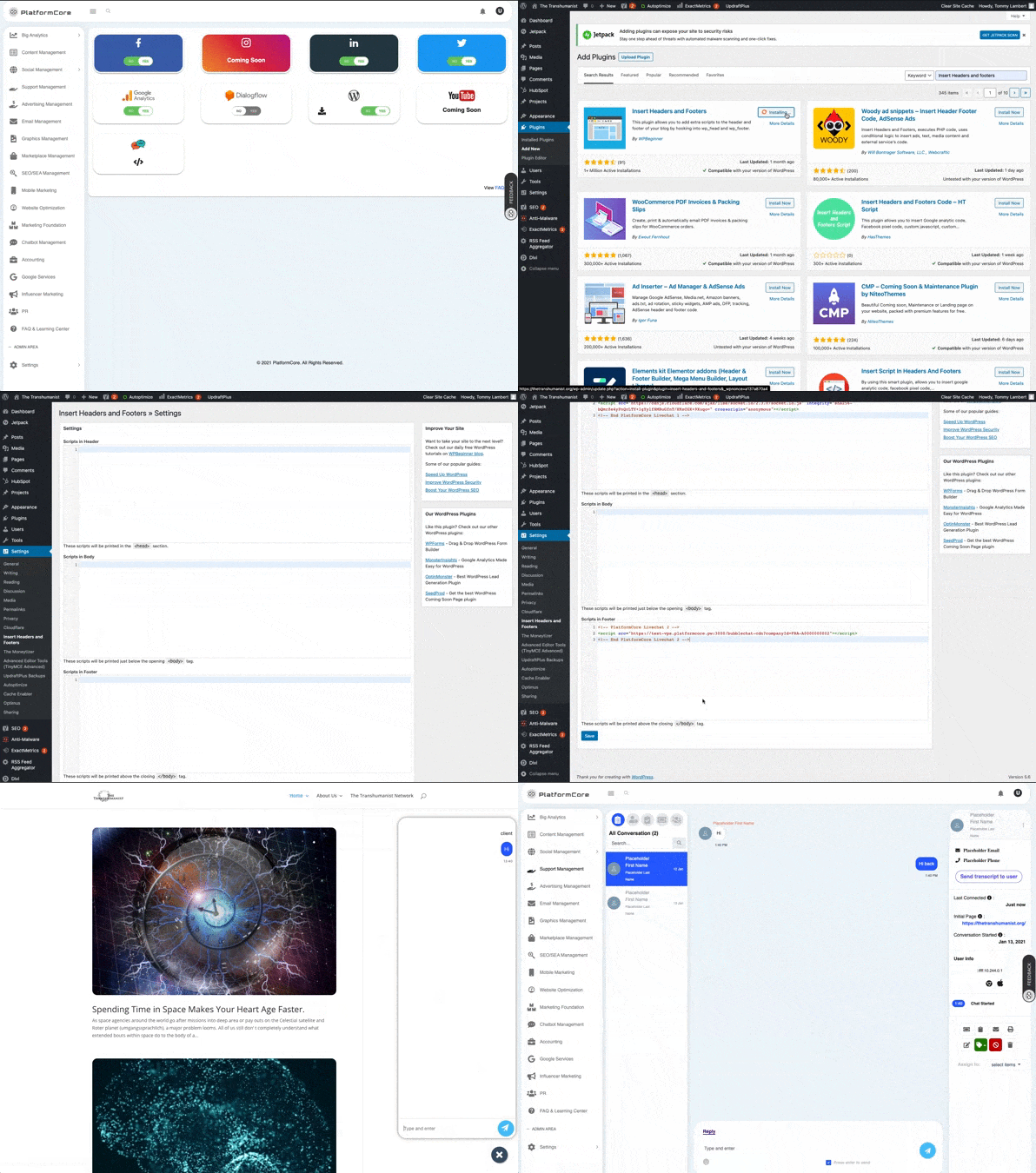
  3. Click on tag icon below the Chat bubbles logo 
  4. You'll always have access to those tags here 
  5. You'll have to simply add them into the head tag and at the end of the body tag
  6. Go to your WordPress Dashboard
  7. Go to "Plugins", then "Add New"
  8. Search in the plugin search bar : Insert Headers and Footers"
  9. Click "Install Now" button 
  10. Then click " Activate" Go to "Settings", then "Insert Headers and Footers" 
  11. Go to the PlatformCore's tab and click "Copy Code" with the 1st tag 
  12. Go back to the WordPress tab and PASTE the tag into "Scripts in Header" 
  13. Go to the PlatformCore's tab and click "Copy Code" with the 2nd tag 
  14. Go back to the WordPress tab and PASTE the tag into "Scripts in Footer" 
  15. Click "Save" to validate them 
  16. To see if it's working, you can visit your website with a incognito window 
  17. You'll see the live-chat bubble and you can test it
  18. Go to your "Support Management" section, you will be able to communicate with your audiences 
  19. Well done for this integration!
Full Process: 
  Live-chat Support Integration Full Process 
 From now on, you can integrate your Dialogflow agent to automate your Support!

How Can I Connect My Google Analytics Account?

March 19, 2021
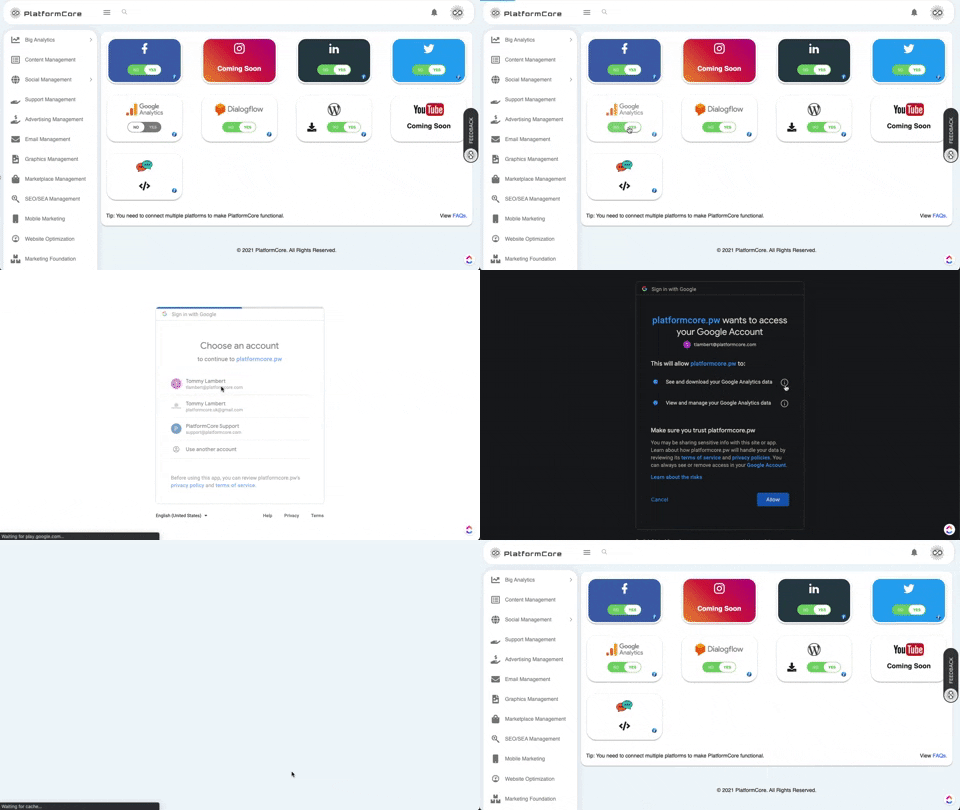
  1. Login to platformcore.pw
  2. Go to "Settings" and "Link Accounts" section
  3. Click on "NO/YES" button below the Google Analytics logo
  4. Connect you Gmail 
  5. The click "Allow" button to complete the permissions access
  6. You succeed this Google Analytics connection with PlatformCore, amazing job! 
Full Process:
 Google Analytics Video Integration Process

How can I add my name to my live-chat support?

March 19, 2021


  1.  You can simply add a name to your live-chat support via your profile section : https://platformcore.pw/main/profile
  2. Then add your details and especially your "User Name"[caption id="" align="alignleft" width="1107"]PlatformCore - My Profile PlatformCore - My Profile[/caption]
  3. And click "Submit"! Tada![caption id="" align="alignleft" width="362"]New Live-chat support's name New Live-chat support's name[/caption]